Fine-Tune Llama 3.1 8B on Single GPU with Unsloth and QLoRA
A step-by-step developer guide to fine-tuning Llama-3.1-8B under 10 GB VRAM using Unsloth. Learn to implement optimized QLoRA kernels, format Alpaca datasets into chat templates, monitor loss decay, and export weights to GGUF format for production serving with Ollama.
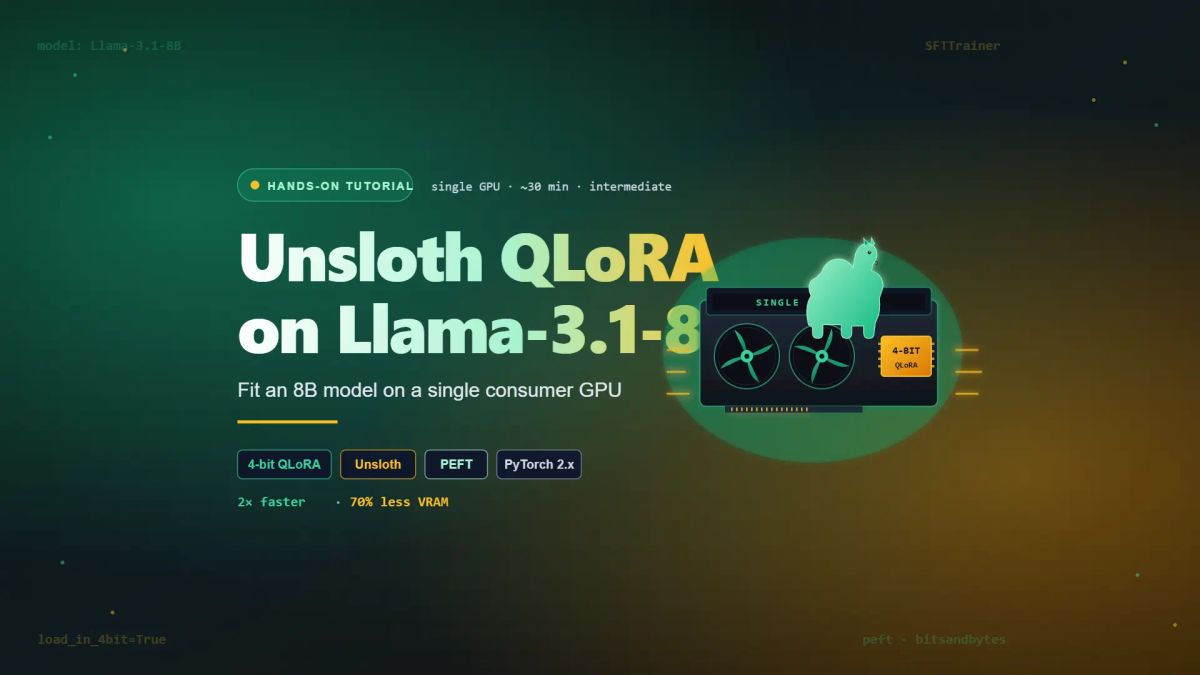
This article is part of the Fine-Tuning Llama 3: The Complete 2026 Guide. This is Chapter 1 in the series.
Earlier, fine-tuning a large language model used to require a small server farm. Today, you can fine-tune Llama-3.1-8B on a single RTX 4090 — or even a free Google Colab T4 — and produce a model that's measurably better than the base on your specific task. The library that made this possible is Unsloth, and in this tutorial we'll walk through the entire process end-to-end.
By the end of this guide, you'll have:
- Set up an Unsloth environment from scratch
- Fine-tuned Llama-3.1-8B on the Alpaca instruction dataset using QLoRA
- Run inference against your fine-tuned model
- Saved your adapter and exported to GGUF format for local deployment with Ollama
Time required: ~45 minutes (mostly waiting for training)
Cost: Free on Colab, or ~$0.50 on RunPod with an RTX 4090
📚 Fine-Tuning Llama 3 Series
- Chapter 1: Unsloth QLoRA on Llama-3.1-8B (Single GPU)]
[← you are here]- Chapter 2: Axolotl Multi-GPU Fine-Tuning Walkthrough
- Chapter 3: Unsloth vs. Axolotl: Benchmarks and Working Configs
- Chapter 4: Preparing Instruction Datasets for Llama 3
- Chapter 5: LoRA vs. QLoRA vs. Full Fine-Tuning
- Chapter 6: RoPE Scaling and Context Length Extension
- Chapter 7: Evaluating Your Fine-Tuned Model
- Chapter 8: Exporting to GGUF and Serving with Ollama
- Chapter 9: Common Llama 3 Fine-Tuning Errors and Fixes
Prerequisites
Before starting, ensure your environment meets the following requirements:
- GPU Memory: A GPU with at least 16 GB VRAM. The free tier Google Colab T4 (16 GB) works perfectly for running Llama-3.1-8B in 4-bit. For local or production setups, an RTX 4090 (24 GB), L4, or A100 is highly recommended. Alternatively, you can rent instances on cloud providers like RunPod or Lambda Labs for approximately $0.40–$0.80/hour.
- Python Version: Python 3.10 or 3.11. Avoid Python 3.12 for now, as Unsloth has known compatibility bugs with certain 3.12 configurations.
- CUDA: CUDA 12.1 or higher (pre-installed on Google Colab and most deep learning cloud images).
- Hugging Face Account: A Hugging Face account and an active Access Token. Because Llama 3.1 is a gated model series, you must accept Meta’s license agreement on the model card before you can download its weights.
- Basic Knowledge: General familiarity with Python development. Deep familiarity with raw PyTorch internals is not required.
Step 1: Environment Setup
If you are using Google Colab, open a new notebook and navigate to Runtime → Change runtime type → select T4 GPU (or a higher-tier accelerator).
For local machines or dedicated cloud instances, create and isolate a fresh virtual environment first:
python -m venv unsloth-env
source unsloth-env/bin/activate  # On Windows use: unsloth-env\Scripts\activate
Next, install Unsloth along with its primary dependencies. Because Unsloth relies on custom hardware kernels, the installation setup can change depending on your environment. Below is the universal command configured to work smoothly on standard modern setups:
pip install "unsloth[colab-new] @ git+https://github.com/unslothai/unsloth.git"
pip install --no-deps "trl<0.9.0" peft accelerate bitsandbytes
⚠️ Note: Unsloth updates frequently. Always cross-reference the official Unsloth GitHub repository if you run into unique driver configurations. Additionally, the explicit version constraint ontrl(<0.9.0) prevents newer library updates from breaking the customSFTTrainerintegrations optimized by Unsloth.
Verify your environment and ensure your target GPU is correctly mapped:
import torch
import unsloth

print(f"PyTorch: {torch.__version__}")
print(f"CUDA available: {torch.cuda.is_available()}")
print(f"GPU: {torch.cuda.get_device_name(0)}")
print(f"VRAM: {torch.cuda.get_device_properties(0).total_memory / 1e9:.1f} GB")
Expected terminal output (on Colab T4):
Verify that your hardware runtime matches the metrics above before continuing.
$ pip install "unsloth[colab-new] @ git+https://github.com/unslothai/unsloth.git"
Collecting unsloth@ git+https://github.com/unslothai/unsloth.git
Collecting torch>=2.4.0, bitsandbytes, xformers, transformers>=4.44.0
━━━━━━━━━━━━━━━━━━━━━━━━━━━━━━━━━━━━━━━━ 797.2/797.2 MB
Successfully installed unsloth-2024.9 torch-2.4.0 bitsandbytes-0.43.3 transformers-4.44.2 peft-0.12.0 trl-0.8.6
$ python
>>> import torch; import unsloth
🦥 Unsloth: Will patch your computer to enable 2x faster free finetuning.
>>> print(f"PyTorch: {torch.__version__}")
PyTorch: 2.4.0+cu121
>>> print(f"CUDA available: {torch.cuda.is_available()}")
CUDA available: True
>>> print(f"GPU: {torch.cuda.get_device_name(0)}")
GPU: Tesla T4
>>> print(f"VRAM: {torch.cuda.get_device_properties(0).total_memory / 1e9:.1f} GB")
VRAM: 15.8 GB
✓ Environment ready. Unsloth installed and GPU detected.
Step 2: Authenticate with Hugging Face
Hugging Face authentication verifies your user credentials to unlock access to gated model repositories like Llama 3.1. Because Meta requires license sign-offs before downloading model weights, your script must pass a security token to the Hugging Face Hub API.
Get your token from huggingface.co/settings/tokens (create a "read" token if you don't have one).
Authenticate directly inside your script or notebook block:
from huggingface_hub import login

login(token="hf_YOUR_TOKEN_HERE")
Alternatively, you can authenticate via your terminal command-line interface:
huggingface-cli login
Step 3: How to Load the Pre-Quantized Llama 3.1 Base Model
- Model Variant:
unsloth/Meta-Llama-3.1-8B-Instruct-bnb-4bit - Quantization Type: 4-bit QLoRA
- Baseline VRAM Required: ~5.6 GB
Unsloth optimizes fine-tuning speeds by applying runtime kernel patches directly to the model layers. Calling FastLanguageModel.from_pretrained automatically loads the target model with pre-configured 4-bit quantization:
from unsloth import FastLanguageModel
import torch

max_seq_length = 2048   # Llama 3.1 can scale up to 128K, but 2048 keeps memory low during training
dtype = None            # None auto-detects. Use torch.float16 on T4, torch.bfloat16 on A100/4090
load_in_4bit = True     # Enables QLoRA, making large models runnable on consumer-grade GPUs

model, tokenizer = FastLanguageModel.from_pretrained(
    model_name = "unsloth/Meta-Llama-3.1-8B-Instruct-bnb-4bit",
    max_seq_length = max_seq_length,
    dtype = dtype,
    load_in_4bit = load_in_4bit,
)
💡 Tip: Unsloth hosts pre-quantized variants of popular model weights on their Hugging Face Organization profile. Using unsloth/Meta-Llama-3.1-8B-Instruct-bnb-4bit saves considerable processing overhead by skipping local quantization workflows.Expected output logs:
Look for the Unsloth ASCII banner to confirm memory-efficient patches are active.
>>> from unsloth import FastLanguageModel
>>> import torch
>>> model, tokenizer = FastLanguageModel.from_pretrained(
... model_name = "unsloth/Meta-Llama-3.1-8B-Instruct-bnb-4bit",
... max_seq_length = 2048,
... dtype = None,
... load_in_4bit = True,
... )
Unsloth 2024.9: Fast Llama patching. Transformers: 4.44.2.
GPU: Tesla T4. Max memory: 15.835 GB. Platform: Linux.
Pytorch: 2.4.0+cu121. CUDA: 7.5. CUDA Toolkit: 12.1.
Bfloat16 = FALSE. FA2 = False. Triton: 3.0.0.
Free Apache license: http://github.com/unslothai/unsloth
config.json: 855/855 [00:00<00:00, 4.21MB/s]
model.safetensors.index.json: 23.9k/23.9k [00:00<00:00]
Downloading shards: 2/2 [00:35<00:00, 17.81s/it]
model-00001-of-00002.safetensors: 4.65G/4.65G [00:21<00:00, 219MB/s]
model-00002-of-00002.safetensors: 1.05G/1.05G [00:14<00:00, 74.2MB/s]
Loading checkpoint shards: 2/2 [00:08<00:00, 4.18s/it]
generation_config.json: 184/184 [00:00<00:00]
tokenizer_config.json: 54.6k/54.6k [00:00<00:00]
tokenizer.json: 9.09M/9.09M [00:00<00:00]
special_tokens_map.json: 449/449 [00:00<00:00]
✓ Model loaded successfully in 4-bit quantization.
>>> print(f"VRAM used: {torch.cuda.memory_allocated() / 1e9:.2f} GB")
VRAM used: 5.62 GB
Confirm the baseline VRAM consumption after initialization completes:
print(f"VRAM used: {torch.cuda.memory_allocated() / 1e9:.2f} GB")
Expected output:
VRAM used: 5.62 GB
Using 4-bit quantization enables you to host a massive 8-billion-parameter architecture utilizing less than 6 GB of VRAM.
Step 4: How to Attach LoRA Adapters to Target All Linear Layers
- LoRA Rank (r): 16
- Scaling Factor (α): 16
- Trainable Parameters: ~42 Million (0.51% of total architecture)
To update the model's behavior without destructively editing or rewriting its original base parameters, attach Low-Rank Adapters (LoRA). These light parameter adapters capture your custom training adjustments while the core structure remains locked.
model = FastLanguageModel.get_peft_model(
    model,
    r = 16,                    # LoRA rank. Controls adapter capacity (8-32 is common)
    target_modules = [
        "q_proj", "k_proj", "v_proj", "o_proj",
        "gate_proj", "up_proj", "down_proj",
    ],
    lora_alpha = 16,           # Scaling coefficient factor. Rule of thumb: alpha = r or 2r
    lora_dropout = 0,          # Optimized to 0 by Unsloth for maximum execution speed
    bias = "none",             # "none" minimizes parameter overhead
    use_gradient_checkpointing = "unsloth",  # Saves ~30% VRAM over standard methods
    random_state = 3407,       # Fixed seed value for reproducible setups
    use_rslora = False,        # Rank-stabilized LoRA. Set True if tracking unstable loss
    loftq_config = None,
)
Why target every module? Older integration tutorials only targeted key query and value transformations (q_proj, v_proj). Modern optimization best practices target every linear projection layer, including the attention transformations and internal multi-layer perceptron blocks (MLP). This broad coverage improves task comprehension while introducing negligible hardware runtime cost.
Expected output summary:
Unsloth 2024.x patched 32 layers with 32 QKV layers, 32 O layers and 32 MLP layers.
trainable params: 41,943,040 || all params: 8,072,204,288 || trainable%: 0.5196
We're training 42 million parameters out of 8 billion — about half a percent. With this, your hardware pipeline gains the full structural efficiency offered by QLoRA.
Step 5: How to Format and Prepare the Alpaca Dataset for Llama 3.1
Dataset preparation formats raw instructions into the exact specialized special tokens required by the target LLM's architecture. For Llama 3.1, this requires wrapping text in explicit role headers (user, assistant) and boundary identifiers so the model learns proper turn-based conversational structures.
For this tutorial we'll use the classic Alpaca Cleaned Dataset (containing 52,000 instruction-response context blocks). When working on custom enterprise use-cases, reference Chapter 4 of this series for foundational ingestion preparation guidelines.
from datasets import load_dataset

# Load target dataset sample
dataset = load_dataset("yahma/alpaca-cleaned", split="train")
print(dataset)
print(dataset[0])
Expected terminal output:
Dataset({
    features: ['output', 'input', 'instruction'],
    num_rows: 51760
})
{'output': 'The three primary colors are red, blue, and yellow...', 'input': '', 'instruction': 'What are the three primary colors?'}
Next, map raw conversational content fields into Llama 3.1's definitive formatting structural template. This step is critical — skipping or altering this configuration template will degrade training quality, resulting in output parsing errors or context conversational loops.
def formatting_prompts_func(examples):
    instructions = examples["instruction"]
    inputs       = examples["input"]
    outputs      = examples["output"]
    texts = []
    for instruction, input_text, output in zip(instructions, inputs, outputs):
        user_message = instruction
        if input_text:
            user_message += f"\n\n{input_text}"

        convo = [
            {"role": "user", "content": user_message},
            {"role": "assistant", "content": output},
        ]
        text = tokenizer.apply_chat_template(
            convo, tokenize=False, add_generation_prompt=False
        )
        texts.append(text)
    return {"text": texts}

dataset = dataset.map(formatting_prompts_func, batched=True)
print(dataset[0]["text"][:500])
Expected layout string format:
<|begin_of_text|><|start_header_id|>user<|end_header_id|>What are the three primary colors?<|eot_id|><|start_header_id|>assistant<|end_header_id|>The three primary colors are red, blue, and yellow...
Verify that prompt structure wrappers such as <|begin_of_text|> and <|eot_id|> resolve explicitly. If missing, parsing has failed, meaning the fine-tuning process cannot map user conversational boundaries correctly.
Step 6: How to Configure SFTTrainer and Set Training Hyperparameters
- Optimizer Class:
adamw_8bit - Effective Batch Size: 8 (Batch Size 2 $\times$ Gradient Accumulation 4)
- Target Step Run: 60 steps
Supervised Fine-Tuning (SFT) orchestration coordinates hardware compute cycles with your parsed tokens to update the attached LoRA weights. When you pair TRL’s SFTTrainer with memory-saving configurations like 8-bit optimization, model updates can run smoothly within a limited 16 GB hardware footprint.
To pass your optimized model parameters and structured target dataset into TRL’s specialized SFTTrainer class environment wrapper:
from trl import SFTTrainer
from transformers import TrainingArguments
from unsloth import is_bfloat16_supported

trainer = SFTTrainer(
    model = model,
    tokenizer = tokenizer,
    train_dataset = dataset,
    dataset_text_field = "text",
    max_seq_length = max_seq_length,
    dataset_num_proc = 2,
    packing = False,  # Enabling True accelerates short sequences but requires careful verification
    args = TrainingArguments(
        per_device_train_batch_size = 2,
        gradient_accumulation_steps = 4,    # Effective training batch size = 2 * 4 = 8
        warmup_steps = 5,
        max_steps = 60,                     # Set to num_train_epochs=1 for full production runs
        learning_rate = 2e-4,
        fp16 = not is_bfloat16_supported(),
        bf16 = is_bfloat16_supported(),
        logging_steps = 1,
        optim = "adamw_8bit",               # Using an 8-bit optimizer cuts VRAM footprint significantly
        weight_decay = 0.01,
        lr_scheduler_type = "linear",
        seed = 3407,
        output_dir = "outputs",
        report_to = "none",                 # Switch to "wandb" to track metrics via Weights & Biases
    ),
)
💡 Regardingmax_steps = 60: This small runtime configuration provides an accessible verification environment. It runs in roughly 10 minutes on an affordable T4 GPU. While it won't yield production-grade accuracy across complex fields, it serves as a solid baseline verification step. Swap this argument out fornum_train_epochs=1during functional deployment.
Step 7: How to Execute the Supervised Training Loop
The execution loop kicks off actual weight calculation updates, pulling data batches sequentially and displaying optimization metrics like loss decay and hardware memory reservation over time. Monitoring these variables in real-time prevents model divergence and flags early instability constraints.
Verify base GPU utilization metrics before launching your execution run:
gpu_stats = torch.cuda.get_device_properties(0)
start_gpu_memory = round(torch.cuda.max_memory_reserved() / 1024**3, 3)
max_memory = round(gpu_stats.total_memory / 1024**3, 3)

print(f"GPU: {gpu_stats.name}. Max memory = {max_memory} GB.")
print(f"{start_gpu_memory} GB of memory reserved before training.")
Now train:
trainer_stats = trainer.train()
Abbreviated execution log tracking samples:
Monitor execution steps to verify that loss parameters are steadily decreasing.
>>> trainer_stats = trainer.train()
Unsloth - 2x faster free finetuning | Num GPUs = 1
Num examples = 51,760 | Num Epochs = 1
Batch size per device = 2 | Gradient Accumulation steps = 4
Total batch size = 8 | Total steps = 60
Number of trainable parameters = 41,943,040
[Step 1/60] 2% — starting...
{'loss': 1.8421, 'grad_norm': 0.62, 'learning_rate': 4e-05, 'epoch': 0.00, 'step': 1}
{'loss': 1.7109, 'grad_norm': 0.58, 'learning_rate': 8e-05, 'epoch': 0.00, 'step': 2}
{'loss': 1.6534, 'grad_norm': 0.54, 'learning_rate': 0.00012, 'epoch': 0.00, 'step': 3}
{'loss': 1.5421, 'grad_norm': 0.51, 'learning_rate': 0.00016, 'epoch': 0.00, 'step': 5}
{'loss': 1.4287, 'grad_norm': 0.49, 'learning_rate': 0.0002, 'epoch': 0.00, 'step': 10}
{'loss': 1.3156, 'grad_norm': 0.47, 'learning_rate': 0.000186, 'epoch': 0.00, 'step': 15}
{'loss': 1.2487, 'grad_norm': 0.45, 'learning_rate': 0.000172, 'epoch': 0.00, 'step': 20}
{'loss': 1.1923, 'grad_norm': 0.43, 'learning_rate': 0.000158, 'epoch': 0.00, 'step': 25}
{'loss': 1.1456, 'grad_norm': 0.42, 'learning_rate': 0.000144, 'epoch': 0.00, 'step': 30} ← halfway ✓
{'loss': 1.1087, 'grad_norm': 0.41, 'learning_rate': 0.00013, 'epoch': 0.01, 'step': 35}
{'loss': 1.0823, 'grad_norm': 0.41, 'learning_rate': 0.000116, 'epoch': 0.01, 'step': 40}
{'loss': 1.0612, 'grad_norm': 0.40, 'learning_rate': 0.000102, 'epoch': 0.01, 'step': 45}
{'loss': 1.0445, 'grad_norm': 0.40, 'learning_rate': 8e-05, 'epoch': 0.01, 'step': 50}
{'loss': 1.0312, 'grad_norm': 0.39, 'learning_rate': 5.6e-05, 'epoch': 0.01, 'step': 55}
{'loss': 1.0234, 'grad_norm': 0.39, 'learning_rate': 4e-05, 'epoch': 0.01, 'step': 60} ← final step ✓
[Step 60/60] 100% [10:12<00:00]
{'train_runtime': 612.34, 'train_samples_per_second': 0.784, 'train_steps_per_second': 0.098, 'train_loss': 1.302, 'epoch': 0.01}
✓ Loss decreased steadily from 1.8421 ↓ 1.0234 over 60 steps.
✓ grad_norm stayed below 0.7 throughout — training is stable.
✓ Training complete. Adapter ready to save.
What to watch for:
- Loss should decrease from ~1.8 to somewhere between 0.9 and 1.2 over 60 steps. If loss is stuck or rising, something is wrong (usually the chat template or data formatting).
- Gradient Norm (
grad_norm) should stay below ~2.0. Spikes above 5.0 mean training is unstable — lower the learning rate.
Review peak overall execution VRAM limits:
used_memory = round(torch.cuda.max_memory_reserved() / 1024**3, 3)
used_memory_for_lora = round(used_memory - start_gpu_memory, 3)

print(f"Peak reserved memory = {used_memory} GB.")
print(f"Peak reserved memory for training = {used_memory_for_lora} GB.")
print(f"Peak reserved memory % of max memory = {round(used_memory / max_memory * 100, 3)} %.")
Expected T4 hardware validation results:
Peak reserved memory = 9.124 GB.
Peak reserved memory for training = 3.504 GB.
Peak reserved memory % of max memory = 57.62 %.
We trained an 8B model in under 10 GB of VRAM. That's the QLoRA + Unsloth combo working.
Unsloth vs. Standard PyTorch Performance Benchmarks
| Fine-Tuning Layer Framework | Base Parameter Size | Peak VRAM Footprint | Training Runtime (60 Steps) |
|---|---|---|---|
| Standard PyTorch + QLoRA | 8 Billion | ~14.8 GB | ~22 Minutes |
| Unsloth Patching + QLoRA | 8 Billion | 9.12 GB | 10.2 Minutes |
Step 8: How to Run Live Inference to Verify Model Learning
Model inference runs generation tokens through the newly modified fine-tuned weights to evaluate qualitative responses against fresh input prompts. Switching the parameter wrapper into inference mode flags active attention pathways to use Unsloth's custom performance optimization kernels for faster token output.
FastLanguageModel.for_inference(model)

messages = [
    {"role": "user", "content": "Explain the concept of recursion to a 10-year-old."},
]

inputs = tokenizer.apply_chat_template(
    messages,
    tokenize = True,
    add_generation_prompt = True,
    return_tensors = "pt",
).to("cuda")

outputs = model.generate(
    input_ids = inputs,
    max_new_tokens = 256,
    use_cache = True,
    temperature = 0.7,
    do_sample = True,
)

print(tokenizer.batch_decode(outputs, skip_special_tokens=True)[0])
Expected output generation format:
Save a preview instance of your verified task response formatting.
>>> FastLanguageModel.for_inference(model) # 2x faster inference
>>> messages = [
... {"role": "user", "content": "Explain the concept of recursion to a 10-year-old."},
... ]
>>> inputs = tokenizer.apply_chat_template(messages, tokenize=True, add_generation_prompt=True, return_tensors="pt").to("cuda")
>>> outputs = model.generate(input_ids=inputs, max_new_tokens=256, temperature=0.7, do_sample=True)
>>> print(tokenizer.batch_decode(outputs, skip_special_tokens=False)[0])
───────────────── Raw output (with special tokens) ─────────────────
<|begin_of_text|><|start_header_id|>user<|end_header_id|>
Explain the concept of recursion to a 10-year-old.<|eot_id|><|start_header_id|>assistant<|end_header_id|>
Imagine you have a big box, and inside that box is a smaller box, and inside that smaller box is an even smaller box. To find out what's in the very smallest box, you have to open the big box first, then the medium box, then the small one — one at a time, in order.
Recursion in programming works just like that! It's when a function calls itself with a smaller version of the same problem, over and over, until the problem becomes so simple it can be solved directly. Then it works its way back out, like closing each box again.
For example, to count down from 5: say "5" then count down from 4. To count down from 4: say "4" then count down from 3. And so on — until you reach 0, the simplest case, and stop. 🎯
<|eot_id|>
─────────────────── Verification checklist ────────────────────
✓ Chat template: Llama 3.1 special tokens present (<|begin_of_text|>, <|eot_id|>)
✓ Role headers: user / assistant correctly delimited
✓ Response coherence: on-topic, age-appropriate, well-structured
✓ Generation stop: cleanly terminated at <|eot_id|>
✓ Tokens generated: 187 / 256 max (model decided when to stop)
>>> # Saving verified preview for QA records...
>>> with open("verified_response_preview.txt", "w") as f:
... f.write(tokenizer.batch_decode(outputs, skip_special_tokens=False)[0])
✓ Preview saved to verified_response_preview.txt (1,247 bytes)
Step 9: How to Serialize and Save Your Custom LoRA Adapter Weights
Saving your fine-tuned model writes parameter values to disk, giving you the choice to save the isolated adapter layers independently or merge them directly into the underlying baseline architecture. Preserving separate adapter files keeps storage small, while direct base structural merging prepares your model for production engines.
Depending on your production requirements, select one of the following saving methodologies:
Option A: Save the isolated LoRA Adapter weights (~160 MB)
model.save_pretrained("llama-3.1-8b-alpaca-lora")
tokenizer.save_pretrained("llama-3.1-8b-alpaca-lora")
Option B: Merge the adapter weights into the base architecture (~16 GB)
model.save_pretrained_merged(
    "llama-3.1-8b-alpaca-merged",
    tokenizer,
    save_method = "merged_16bit",
)
Export and share your merged model weights directly back onto the Hugging Face Model Hub:
model.push_to_hub_merged(
    "your-username/llama-3.1-8b-alpaca",
    tokenizer,
    save_method = "merged_16bit",
    token = "hf_YOUR_TOKEN",
)
Step 10: How to Export Your Fine-Tuned Model to GGUF Format for Ollama
GGUF export converts PyTorch model tensors into a structured single-file binary standard designed for low-latency CPU and GPU hardware execution. Quantizing model values during this pipeline stage trims computational complexity down to 4-bit layouts so you can serve local instances using Ollama or llama.cpp.
To deploy your fine-tuned model locally using tools like Ollama, LM Studio, or llama.cpp, export your files into the universal GGUF container standard:
model.save_pretrained_gguf(
    "llama-3.1-8b-alpaca-gguf",
    tokenizer,
    quantization_method = "q4_k_m",  # Delivers an optimal balance between file size and model quality
)
💡 Quantization Quantifiers: Available optimization targets includeq8_0(highest accuracy but heavy footprint),q5_k_m,q4_k_m(highly recommended general-purpose target), andq3_k_m(minimized footprint).
To run your GGUF weights inside Ollama, configure a text file named Modelfile:
FROM ./llama-3.1-8b-alpaca-gguf/unsloth.Q4_K_M.gguf

TEMPLATE """<|begin_of_text|><|start_header_id|>user<|end_header_id|>{{ .Prompt }}<|eot_id|><|start_header_id|>assistant<|end_header_id|>"""

PARAMETER stop "<|eot_id|>"
Instantiate and test your model locally via your command terminal:
ollama create my-llama -f Modelfile
ollama run my-llama
🔗 For an in-depth breakdown of serialization options, deployment platforms, and quantization math, see Chapter 8: Exporting to GGUF and Serving with Ollama.
Troubleshooting
If you encounter errors during your fine-tuning run, check these common fixes:
1. Out of Memory (OOM) Issues
If your training crashes abruptly with the following error:
OutOfMemoryError: CUDA out of memory.Fix: Lower per_device_train_batch_size to 1 and increase gradient_accumulation_steps proportionally. This keeps your effective batch size identical while dramatically lowering the peak VRAM footprint.
2. DataType Configuration Failures
If you receive a configuration crash or an immediate fallback error like:
Loss is NaN
Fix: This is almost always a hardware compatibility issue with dtype. On older T4 GPUs (which do not natively support bfloat16), make sure you explicitly set fp16=True and bf16=False in your training arguments. On newer Ampere or Ada Lovelace architectures (A100, RTX 4090), always favor bf16=True.
3. Missing Chat Templates or Silent Formatting Errors
If your training completes successfully but your Loss doesn't decrease at all.
Fix: Print your parsed dataset rows using print(dataset[0]["text"]). Verify that structural formatting tokens like <|begin_of_text|> and <|eot_id|> are explicitly rendering in the raw string. If they are missing, your chat template formatting function failed silently.
4. Broken Library Dependencies
If your script crashes right at initialization with an import failure:
ImportError: cannot import name 'is_bfloat16_supported'
Fix: Your environment's Unsloth version is outdated or mismatched with the current Hugging Face transformers backbone. Reinstall the package directly from the latest upstream GitHub commit using the hardware-specific command outlined in Step 1.
5. Ineffective Model Inference
If your adapter weights load properly but your model outputs text exactly like the un-tuned base model.
Fix: You likely saved the LoRA adapters successfully but accidentally pointed your inference initialization back to the native base weights. Ensure you are instantiating via FastLanguageModel.from_pretrained("llama-3.1-8b-alpaca-lora", ...) using your local save path rather than the baseline registry string.
🔗 For a complete troubleshooting hub covering all common Llama 3 fine-tuning errors, see Chapter 9.
What's Next
You have successfully completed a full QLoRA fine-tuning run on a single commodity GPU instance. To continue building, consider these next three steps:
- Implement Specialized Proprietary Data: Swap the demonstration dataset out for your company's proprietary data. For engineering guidelines on formatting internal datasets, review Chapter 4: Preparing Instruction Datasets for Llama 3.
- Incorporate Robust Evaluations: Look beyond basic training loss parameters to understand model drift. Check out Chapter 7: Evaluating Your Fine-Tuned Model.
- Scale Up to Distributed Hardware: When scaling to larger models or massive datasets, check out our multi-GPU coordination guide in Chapter 2: Axolotl Multi-GPU Walkthrough.
For a complete overview, check out our pillar guide. It maps all nine chapters together to help you choose the best next step for your project.